Goal
Go through the platform's home page: what each button does and where it leads.
The home page opens after you log in. Every section is one click away from here. Twelve zones.
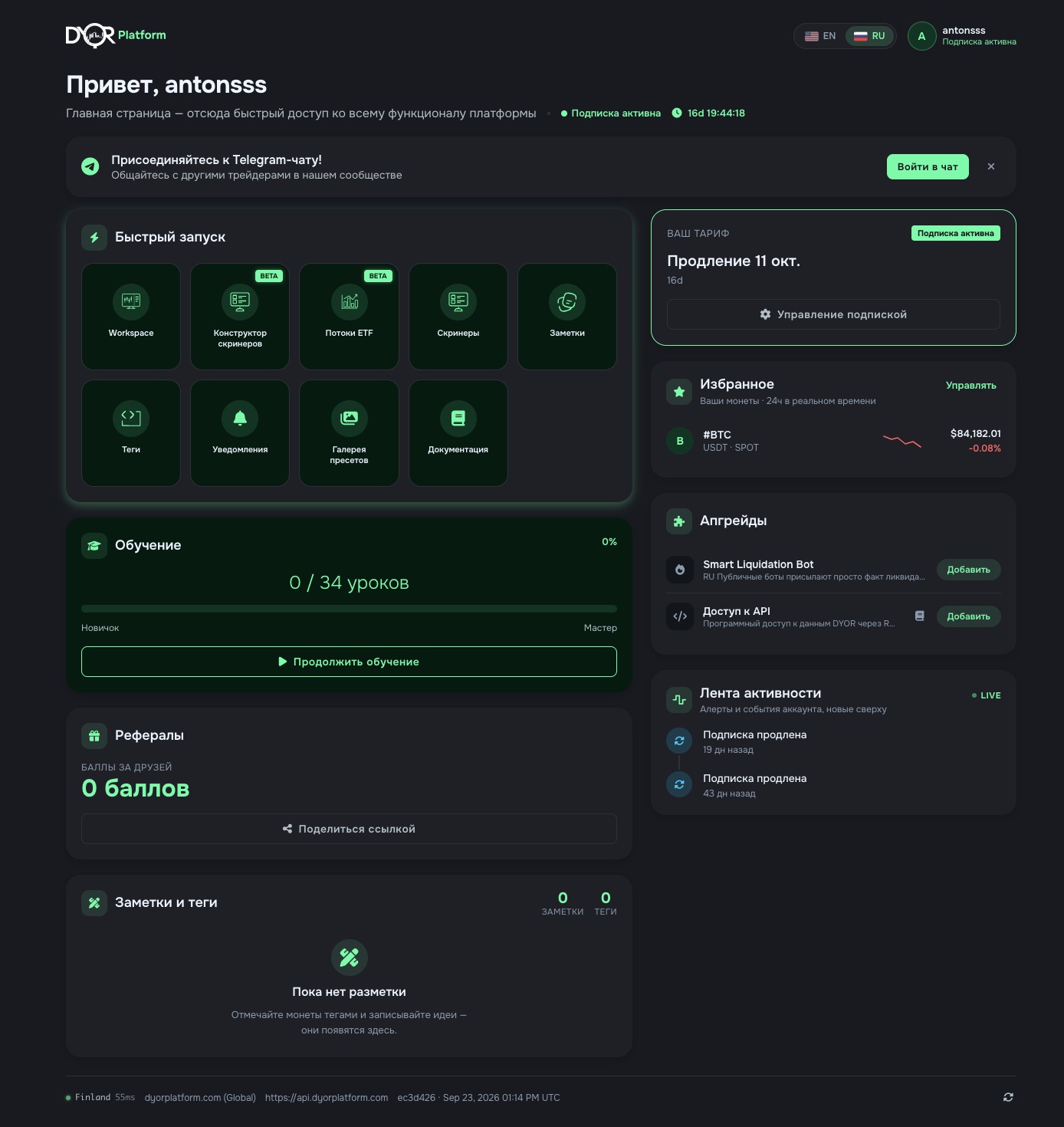 123456789101112
- 1Header — EN / RU language switch and profile: login, subscription status, a menu with account settings and log out. The logo takes you back home.
- 2Greeting — subscription status and a timer: days and hours until renewal. The same timer is in the “Your plan” card.
- 3Telegram chat — “Join Chat” opens the invite to the community chat. The cross hides the banner.
- 4Quick launch — section tiles, see the table below.
- 5Education — lessons completed, a scale from “Beginner” to “Master”; the “Continue learning” button opens the course.
- 6Referrals — points for invited users. “Share link” copies your referral link to the clipboard. Details are in account settings.
- 7Your notes & tags — counters and latest entries. Clicking a note opens its coin in Workspace. “View all” opens the notes page, tags open the tags page. When there's nothing yet — “Nothing marked up yet”.
- 8Your plan — status: Subscription active, Trial access, Ending soon, Subscription expired or Free access. Renewal date and time left. “Manage subscription” opens the plans and add-ons page. A new account also sees a 14-day trial offer and the “First steps” checklist here.
- 9Watchlist — coins from your Workspace favorites: market, 24h mini chart, price and 24h change in real time. Clicking a coin opens its chart. “Manage” opens the favorites panel in Workspace. If empty — “Add coins”.
- 10Add-ons — paid extras to the subscription: Smart Liquidation Bot and API access. “Add” opens the plans page. API has a documentation icon next to it. Purchased items are marked “Active” or “until [date]”.
- 11Activity — triggered alerts marked “Triggered” and account events: subscription renewed or expired. Newest first, LIVE label. A click takes you to “Notifications”. No alerts yet — a “Create alert” button.
- 12Footer — server and latency to it, domain and region, API address, build version and its date, a check-for-updates button. If it won't load — “Reload” and “Switch server”.
1Quick launch
| Tile | Where it leads |
|---|
| Workspace | Chart with DYOR indicators.
The main working screen, next lesson. |
| Screener Builder | Your own screener on all platform data: by a phrase or by hand.
BETA label. |
| ETF Flows | A page of spot ETF inflows and outflows.
BETA label. |
| Screeners | Ready-made tables: Market Depths, Screener V2, Screener V3, Minerva. |
| Notes | All coin notes in one list. |
| Tags | Labels on coins and a filter by them. |
| Notifications | Alert list and editor on a separate page.
Same as “Alerts” in the Workspace right rail. |
| Presets Gallery | Saved indicator sets: yours and shared ones. |
| Documentation | Platform help, opens in a new tab. |
A BETA or NEW label means the section is new and may change. A grey tile that shows “Renew your subscription to unlock this feature” on click is locked by your plan. Without a subscription, at least Workspace, Notes and Tags are open.
Takeaway
The home page is the entry to every section. “Quick launch” holds the section tiles; a grey tile is locked by your plan. On the left: education, referrals, notes and tags. On the right: your plan with the renewal date, watchlist with 24h prices, add-ons and the feed of triggered alerts. In the footer: server, version and update check. Next in the course: Workspace, the first tile.
 Learn hubBlog